
 EN
EN
 CN
CN
In Qt development, improper environment variable configuration is the primary cause of issues such as "qmake not found," "missing platform plugins," or applications that run within an IDE but fail when executed from a terminal. While Qt is a relatively self-contained SDK, the specific binaries and libraries loaded at runtime are ultimately determined by the environment settings of the operating system and the shell.
This article explains the roles of key environment variables, outlines configuration methods for Windows, Linux/macOS, and within Qt Creator, and provides a troubleshooting guide for common failure scenarios.
First, let’s clarify: which environment variables need to be configured for Qt?
Before making any changes, it is important to understand several key variables, each of which governs how the system locates specific paths.
PATH: The most fundamental variable; it determines which directories the shell or command line searches when executing tools like `qmake`, `moc`, or `designer`. The essential step is to append the `bin` folder—located within your Qt installation directory—to this variable.
QTDIR: An optional variable that points to the root directory of your Qt installation (e.g., `C:\Qt\6.7.0\mingw_64` or `/opt/qt/6.7.0/gcc_64`). While not required in every scenario, some legacy build scripts still rely on it.
QT_PLUGIN_PATH: Used when Qt’s default plugin-discovery mechanism is insufficient, or when a custom directory layout is required for deployment. At runtime, Qt checks this path to locate platform plugins, image format plugins, and SQL drivers. Many "platform plugin not found" errors stem from this variable not pointing correctly to the `plugins` directory.
LD_LIBRARY_PATH (Linux) / DYLD_LIBRARY_PATH (macOS): These define the search paths for dynamic libraries on Unix-like systems. If Qt is installed in a non-standard location that the system’s default library path does not recognize, these variables are used to inform the dynamic linker where to find the shared libraries.
QML2_IMPORT_PATH / QML_IMPORT_PATH: If you make extensive use of QML or have placed custom modules in non-standard directory structures, these variables are necessary to tell the QML engine where to resolve imports. Windows: Graphical Interface and Command-Line Methods
Method 1: System Environment Variables (Persistent)
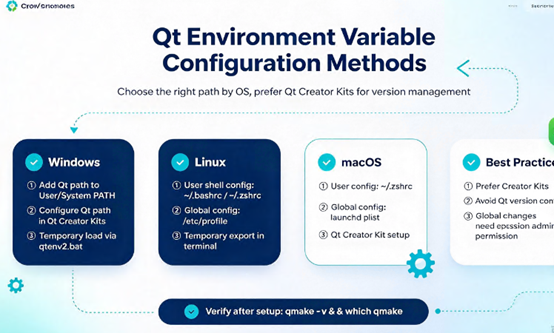
This is the most standard and reliable approach. Right-click "This PC" → Properties → Advanced system settings → Environment Variables. In the "System variables" section, locate the `Path` variable, click Edit, and add a new entry for the Qt `bin` directory—for example, `C:\Qt\6.7.0\mingw_64\bin` or `C:\Qt\5.15.2\mingw81_64\bin`.
Once configured, close all open terminals and IDEs. Reopen Command Prompt or PowerShell and run `where qmake`. If the returned path matches the directory you just added, the PATH configuration is active. If it returns a different version of `qmake`, there is a priority conflict in your PATH; directories listed earlier take precedence during the search.
Method 2: Temporary Configuration (Current Terminal Session Only)
If you prefer not to modify the global PATH, you can set it temporarily for your current command-line session:
```cmd

set PATH=C:\Qt\6.7.0\mingw_64\bin;%PATH%
This setting will be lost once the terminal is closed; it is useful for quick testing or troubleshooting PATH conflicts.
Linux and macOS: Shell Configuration Files
# Linux: Editing `~/.bashrc` or `~/.zshrc`
On Linux, user-level environment variables are typically defined in `~/.bashrc` (for Bash) or `~/.zshrc` (for Zsh). Append the following lines to the end of the file (replace the paths with your actual installation directory):
export QTDIR=/opt/Qt/6.7.0/gcc_64

export PATH=$QTDIR/bin:$PATH

export LD_LIBRARY_PATH=$QTDIR/lib:$LD_LIBRARY_PATH

export QT_PLUGIN_PATH=$QTDIR/plugins:$QT_PLUGIN_PATH

export QML2_IMPORT_PATH=$QTDIR/qml:$QML2_IMPORT_PATH
After saving the file, run `source ~/.bashrc` to apply the changes immediately. If you want the configuration to apply to all users, you can add the content above to `/etc/profile.d/qt.sh` (requires root privileges).
# macOS: Focus on `DYLD_LIBRARY_PATH` and `DYLD_FRAMEWORK_PATH`
The dynamic library mechanism on macOS differs slightly from that of Linux. In addition to `PATH`, you typically need to set `DYLD_LIBRARY_PATH` or `DYLD_FRAMEWORK_PATH` to point to the Qt `lib` directory; otherwise, the dynamic linker may fail to locate the Qt frameworks.
Add the following to `~/.zshrc` (Zsh is the default shell on macOS Catalina and later):
export QTDIR=$HOME/Qt/6.7.0/macos

export PATH=$QTDIR/bin:$PATH

export DYLD_LIBRARY_PATH=$QTDIR/lib:$DYLD_LIBRARY_PATH

export QT_PLUGIN_PATH=$QTDIR/plugins:$QT_PLUGIN_PATH

Qt Creator Configuration: Project-Level vs. Global-Level
Often, rather than modifying the operating system's global environment variables, you may prefer to configure the environment specifically for a given project or "Kit" within Qt Creator. This approach offers better isolation and ensures that other system tools remain unaffected.
Project-Level Environment (Projects → Build Environment)
Navigate to "Projects" → "Build Environment" to add or modify variables. These settings are saved locally within the project—in files such as `CMakeLists.txt.user` or `.pro.user`—and apply only to the current project.
For example, if your project depends on a dynamic library located in a non-standard directory, you can add `LD_LIBRARY_PATH` here without "polluting" your system-wide environment.
Global Runtime Environment (Preferences → Build & Run → General)
If you want a specific set of environment variables to apply to the execution and debugging of all projects—without affecting Qt Creator itself—go to "Preferences" → "Build & Run" → "General" and click "Change" under "Application environment." For instance, setting `QT_FORCE_STDERR_LOGGING=1` ensures that application output is displayed directly within the "Application Output" panel. Loading Environment Variables from Files
Qt Creator supports importing environment variables in bulk from text files or shell scripts. On any of the environment configuration pages mentioned above, simply select "Get variables from text file or shell script" and specify the file path. This is highly useful for scenarios where a standardized environment configuration needs to be synchronized across multiple machines.
Common Issues: Why Aren't Environment Variables Taking Effect?
Issue 1: Changes made in the terminal are not reflected in Qt Creator. Qt Creator reads the system environment at the time of startup; subsequent changes made in a shell are not automatically synchronized with an already running Qt Creator process. After modifying system environment variables, you must completely close and restart Qt Creator for it to pick up the latest values.
Issue 2: `qmake -v` fails, even though the path has been added to `PATH`. First, ensure that you have added the `bin` directory, not the `lib` or `include` directories. Second, if multiple versions of Qt are installed on your system, directories appearing earlier in the `PATH` take precedence—an older version might be "shadowing" the intended `qmake` command. You can verify which version is actually being called by running `which qmake` (on Linux/macOS) or `where qmake` (on Windows).
Issue 3: The application runs within Qt Creator, but launching it from the terminal results in a "could not find platform plugin" error. This typically indicates that `QT_PLUGIN_PATH` has not been configured in the system environment. While Qt Creator automatically injects the necessary plugin paths when launching an application, this does not happen when running from a terminal; you must manually point `QT_PLUGIN_PATH` to the `plugins` directory within your shell configuration.
Issue 4: Changes made to `~/.bashrc` do not take effect in a newly opened terminal. First, confirm that you are indeed using Bash. If you are using Zsh (common on macOS and some Linux distributions), `~/.bashrc` will not be read automatically; you will need to add the configuration to `~/.zshrc` instead.
Remote Development: The Fundamental Requirement for Environmental Consistency
Many Qt developers deploy their build environments or CI runners on remote servers. In such cases, the reproducibility of environment variable configurations is critical to ensuring consistent, successful builds. If you use a Jtti cloud server—with Hong Kong or U.S. nodes connected via premium CN2 GIA routes and optimized for direct access across all major carriers—you benefit from low latency and stable connections when managing remote build environments via SSH. This ensures that the configuration and verification of environment variables remain uninterrupted by network fluctuations. Every instance comes with dedicated bandwidth, providing consistent throughput when pulling dependencies or transferring build artifacts. Furthermore, a recurring lifetime discount policy ensures that the long-term costs of maintaining build nodes remain predictable.
The core logic behind configuring Qt environment variables is to inform the system which version of Qt to use and where to locate the necessary tools and libraries. On Windows, this involves the `PATH` variable; on Linux, it concerns `LD_LIBRARY_PATH` and `QT_PLUGIN_PATH`; on macOS, you must also consider `DYLD_FRAMEWORK_PATH`. Meanwhile, Qt Creator offers a project-level environment configuration that provides a cleaner, more isolated setup. Once configured, verifying your setup using commands like `qmake -v` and `where` (or `which`) `qmake` is far more efficient than relying on a process of trial and error.